

Contents
PhotoScan by Google Photos is a free mobile app for digitizing printed photos with your phone. Instead of “taking a picture of a picture,” PhotoScan guides you through a short, multi-image capture and then automatically detects edges, corrects perspective, rotates, and removes glare, producing a clean, rectangular scan. You can back up scans to Google Photos so they’re safe, searchable, and organized, with the option to edit and create movies or filters inside Google Photos.
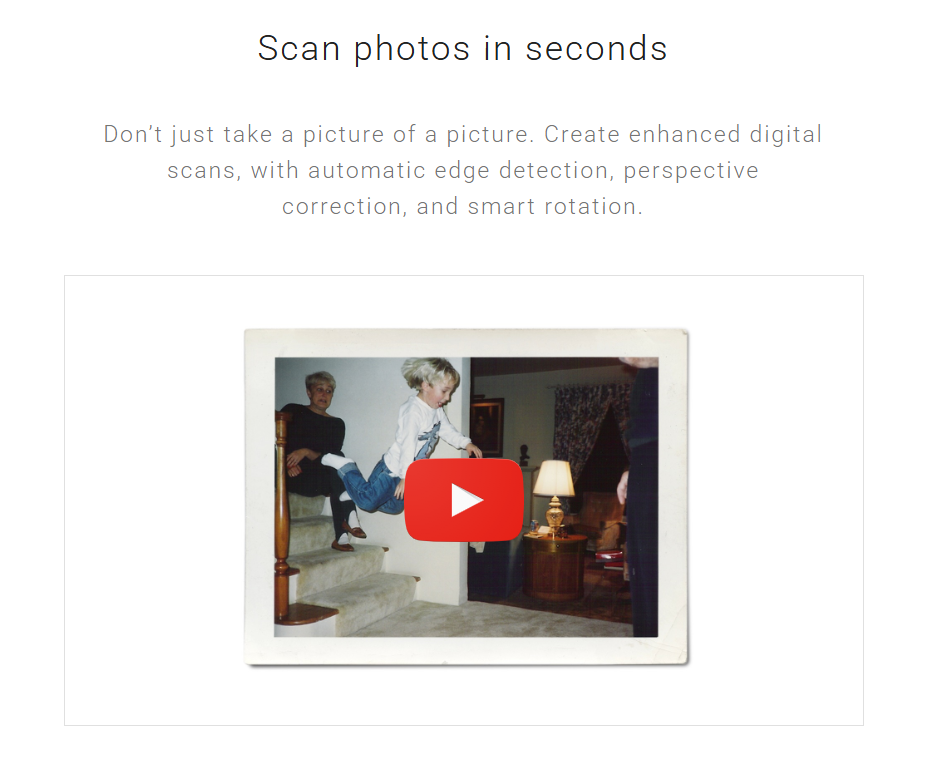
Features of PhotoScan
1) Glare-Removal Engine
PhotoScan’s signature is glare control for glossy photos, album sleeves, or framed prints. It captures several angles, then registers and stitches them to separate glare from the image underneath, a technique grounded in Google’s research (with on-device optical-flow refinement).
2) Automatic Edge Detection, Perspective Correction & Smart Rotation
The app automatically detects the photo boundary, rectifies perspective, and applies smart rotation so your final output is a straight, rectangular image, fast and hands-off for batch sessions.
3) Google Photos Integration
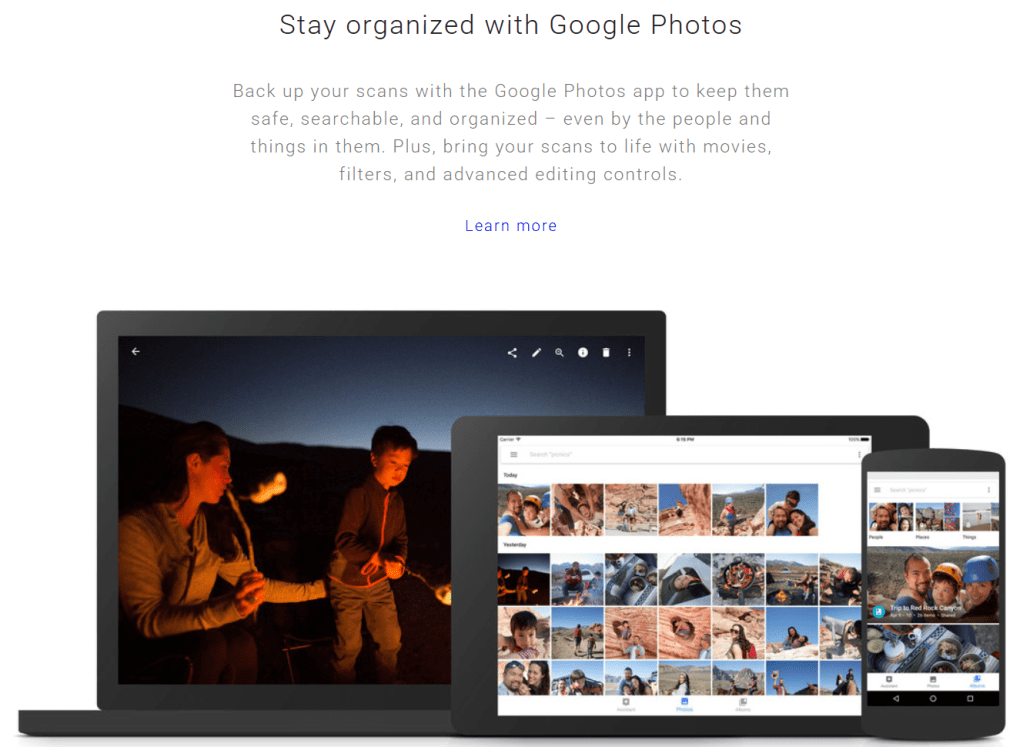
Back up scans with Google Photos to keep them safe, searchable, and organized, even by people and things. From there, you can use Photos’ editing controls, filters, and creative tools (movies, etc.).
4) Speed Modes:
In glare-free environments, you can turn off Glare removal to scan faster with a single tap. It’s perfect for matte prints or well-controlled lighting.
5) Practical Scanning Tips Built-In
Google’s guidance improves results: keep the phone level, place photos on a contrasting flat surface, use flash to reduce shadows, and, for framed or sleeved photos, enable flash and follow the capture cues.
Pricing of PhotoScan
1. App price: PhotoScan is free to download and use.
2. Storage: If you back up your scans to Google Photos, those uploads count toward your Google Account storage (15 GB free shared across Google services). If you need more space, you can upgrade via Google One.
Note: Backups and storage policies live with Google Photos. The app itself doesn’t require a paid subscription.
How PhotoScan Works
1. Open PhotoScan and hold your phone directly above the print on a flat, contrasting surface.
2. Tap to capture, then move the phone so the on-screen circle passes over four dots; PhotoScan uses these angles to remove glare.
3. After processing, auto-crop, adjust corners, rotate, or delete if needed.
4. Want speed over glare removal? Turn off Glare removal to scan faster (one tap).
5. Save locally or let the scan back up to Google Photos for organization and edits.
Why the extra moves? Google’s computer-vision pipeline aligns multiple frames (using homographies and optical flow) and then intelligently composes the darkest non-glare pixels into a single result, optimized to run quickly on the phone for a near-instant experience.
Security & Privacy
Because your scans typically live in Google Photos once backed up, the relevant privacy and security posture follows Photos:
1. No ads from your photos: Google states Google Photos doesn’t sell your photos/videos or use them for advertising.
2. Encryption & secure infrastructure: Google describes encryption in transit and at rest, and an advanced, continuously monitored infrastructure protecting your data.
3. User control: Central privacy and security settings in your Google Account (including Privacy Checkup and Security Checkup) help you manage what’s saved and how it’s used.
If you prefer not to back up, you can keep scans local on your device; backup is optional from within Google Photos’ settings.
Pros & Cons of PhotoScan
Pros
1. Best-in-class glare reduction for printed photos, computer-vision approach tuned for glossy prints and frames.
2. One-tap speed option (disable glare removal) when conditions allow.
3. Hands-off processing: auto-edge detection, perspective correction, smart rotation.
4. Seamless backup & organization in Google Photos, with editing tools and search.
Cons
1. Not a document scanner first. If your main need is PDFs, OCR, or multi-page doc packages, a document-centric app may fit better.
2. Dependent on a good capture technique. You still need to keep the phone level and follow the dot guidance for the best results.
3. Storage counts toward the Google Account quota if you back up to Photos (15 GB free shared). Power users may want a Google One plan.
Alternatives to PhotoScan
1. Photomyne: A photo-archiving app focused on albums, batch scanning, enhancements (e.g., color restoration), and cloud features, with a membership for premium functions (ad-free, unlimited backup, online access). Great for organizing large family archives.
PhotoScan advantage: Glare-removal pipeline born from Google research excels with glossy/frame situations; seamless Google Photos backup and search are also compelling.
2. Adobe Scan: A document-first scanner with OCR and tight PDF workflows tied to Adobe Cloud/Acrobat across devices. Excellent for receipts, contracts, and doc organization.
PhotoScan advantage: For printed photographs, PhotoScan’s multi-image glare removal and photo-oriented corrections produce more consistent glare-free results than single-shot document scanners typically deliver.
3. Microsoft Lens: A free, simple document scanner that converts images to PDF/Word/PowerPoint, with OneDrive/OneNote routing (feature availability is evolving).
PhotoScan advantage: Again, photo-specific processing and glare handling make PhotoScan the better pick for prints, albums, and frames.
IBR Review
If your goal is to digitize printed photos, not documents, PhotoScan by Google is a strong fit. It’s guided, multi-angle capture reliably reduces glare and pairs with auto edge detection, perspective correction, and smart rotation to turn quick phone shots into clean, share-ready scans. The workflow is simple, and an optional backup to Google Photos keeps everything organized and easy to find later. It’s also free, so there’s no paywall blocking core scanning. The trade-off is that it’s not a document/OCR tool for multi-page PDFs or heavy office workflows; stick to PhotoScan when you’re preserving glossy prints, album photos, or framed pictures.
Follow the in-app tips (keep the phone level, scan the four points) and you’ll get consistently good results for archiving and sharing your memories.
Rating
1. Ease of Use: 4.7/5
2. Features: 4.5/5
3. Template Quality & Exports: 4.2/5
4. Pricing & Flexibility: 4.8/5
Overall: 4.6/5
If you’re building a photo or creator-tool brand, Ikana Business Solutions can help you launch, position, and scale, from go-to-market strategy to SEO content, creator partnerships, and conversion-optimized landing pages.
We specialize in AI-forward storytelling that translates features into clear user value.
Ready for traction? ikana.io