VideoProc Converter App Review: All-in-One Video Editing & Conversion Tool in 2025.
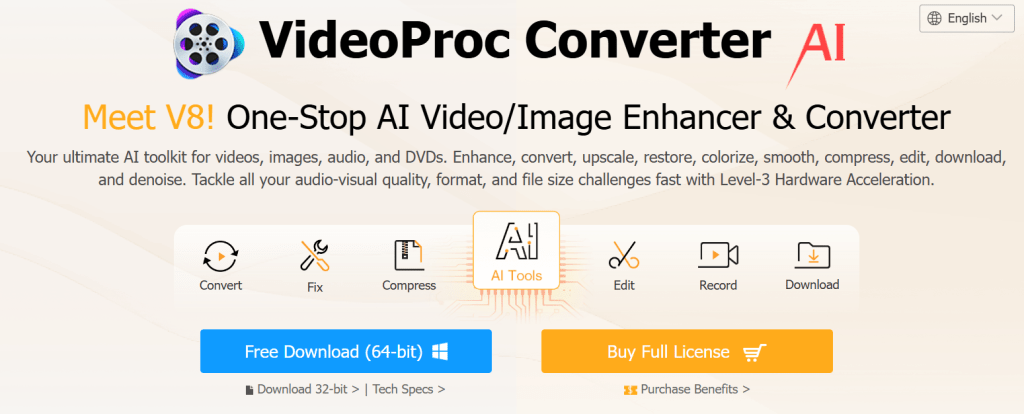
VideoProc Converter (now branded as “VideoProc Converter AI”) is a desktop suite that tackles everyday video tasks, converting, compressing, quick-editing, recording, and downloading, and now offers AI-powered enhancements like super-resolution upscaling and frame interpolation. It runs on Windows and macOS and leans heavily on GPU acceleration to keep timelines snappy, even with 4K footage. The company (Digiarty Software) positions it as a one-stop utility rather than a pro NLE, and the feature list backs that up: 370+ codecs, 420+ formats, batch processing, DVD backup modes, and a built-in media downloader/recorder.
Features of VideoProc
1) AI Enhancements: Super Resolution, Frame Interpolation & More
The latest build introduces AI Super Resolution (2×, 3×, and 4×), Frame Interpolation (e.g., enhancing 30/60 fps to 120/240 fps), AI Stabilization, image Face Restoration/Colorization, and Audio AI (including noise suppression and vocal remover). These tools aim to rescue older footage, smooth slow-motion, and improve perceived sharpness with minimal manual tweaking. They’re accessible from the main UI and benefit from GPU support for practical speeds on consumer PCs.
2) Broad Format Support + Hardware Acceleration = Real-World Speed
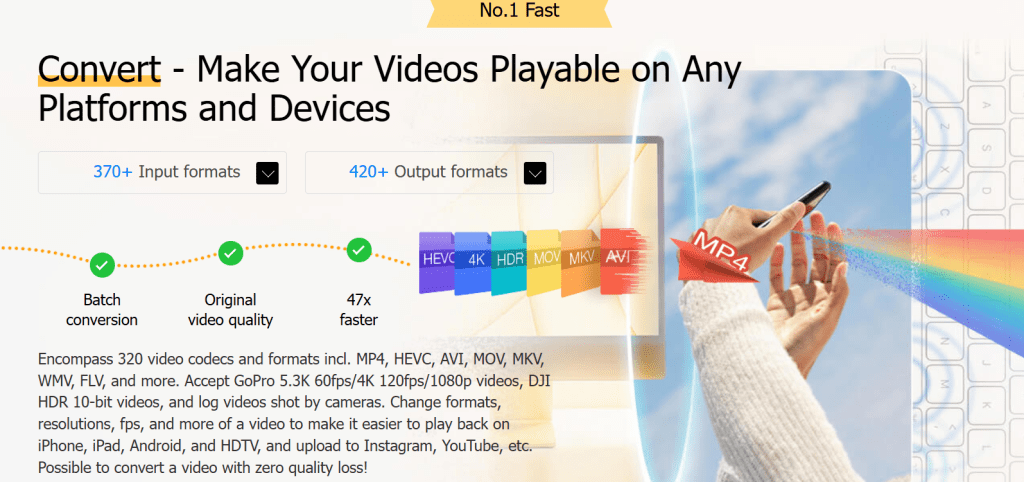
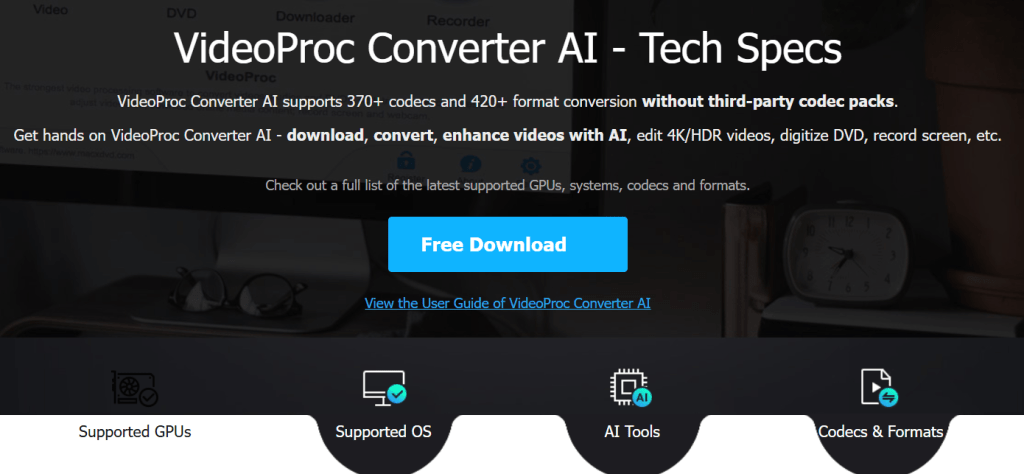
Under the hood, VideoProc supports 370+ codecs and 420+ format conversions, covering common camera/phone files and delivery targets. It taps NVIDIA/AMD/Intel hardware for decoding/encoding/editing/rendering, which the vendor says can deliver big speed-ups versus CPU-only workflows, handy when you’re batch-processing long 4K clips. Setup is automatic; a guide explains how the app detects your GPU and enables acceleration.
The company also touts up to “47× faster than real-time” processing under ideal conditions, useful context if you’re migrating from purely CPU-bound tools. As always, your mileage depends on source codec, settings, and hardware.
3) Smart Compression & Handy Quick-Edits
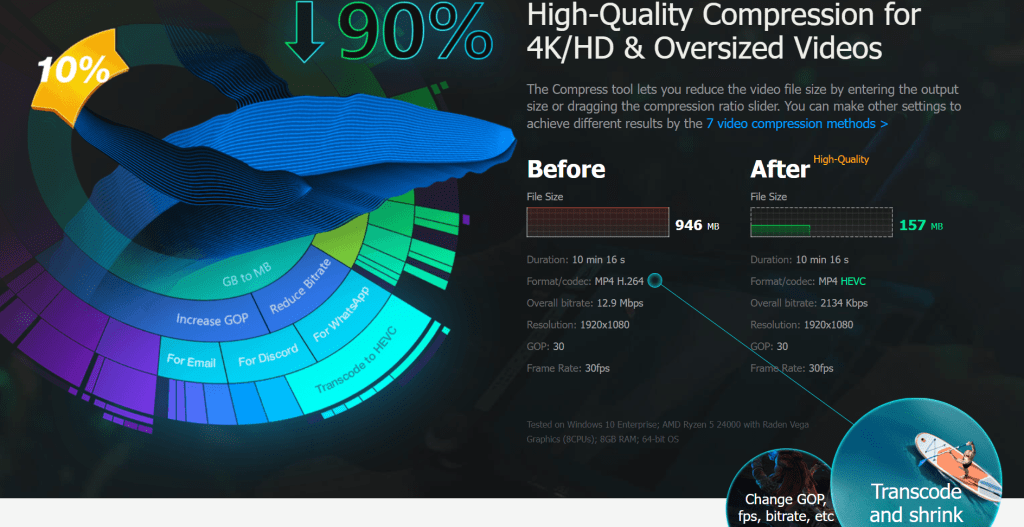
Beyond changing formats, you can shrink file sizes with seven approaches: target a specific size, transcode to a more efficient codec, or adjust frame rate, bitrate, GOP, and resolution. For quick cleanup, the mini editor handles cut/trim/split/crop/merge/rotate/flip, playback speed, denoise/deinterlace, color tweaks, and subtitle burn-in with online subtitle search. Think of it as the “last mile” tool to prep a video for sharing without opening a heavy NLE.
4) Downloader, Screen Recorder & DVD Backup
VideoProc includes a media downloader that (for fair-use cases) saves videos/audio/subtitles from 1,000+ popular sites (and more niche ones) and a screen recorder for tutorials or gameplay. If you’re digitizing old discs, there are three DVD backup modes, including conversion to MP4. Having all of this in one place is convenient when you routinely publish to social or need reference clips in your edits.
5) Power User Controls When You Need Them
When it’s time to fine-tune, the Advanced Settings expose the essentials: 2-pass encoding, ABR/VBR, custom bitrate/resolution/frame rate/aspect, GOP/B-frames, and 5.1 channel audio. There’s also an output size estimator so you can balance quality vs. size before you hit Run.
Pros & Cons of VideoProc
Pros
1. All-in-one convenience for conversion, compression, quick edits, downloading, recording, and AI enhancements in a single app.
2. Wide format support (370+ codecs / 420+ outputs) with GPU acceleration, just encoding, but also decode/edit/render, for meaningful speed-ups on modern GPUs.
3. Practical AI tools (upscaling, interpolation, stabilization, audio cleanup) are integrated into the everyday workflow.
4. DVD backup modes, plus web downloader, time-savers, and many converters are skipped.
5. Clear, simple UI with presets and deeper controls when needed (2-pass, GOP, ABR/VBR).
Cons
1. Not a full NLE: no multi-track timeline like Premiere/Resolve; great for prep and finishing, less so for complex edits.
2. AI results vary with input: older/noisy clips can show artifacts if pushed too hard; testing a short sample first is wise.
3. Downloader availability can vary with site changes and regional rules (true of any downloader).
4. Trial limits apply (e.g., short clip limits for certain AI features) until you unlock the full version.
Pricing Plan for VideoProc
- Premium 365 (1-year / 3 PCs or Macs): $25.95 (auto-renews; cancel anytime).
- Lifetime License (1 PC or Mac): $45.95 one-time.
- Family License (Lifetime / 3-5 PCs or Macs): $57.95 one-time.
All plans show instant license delivery and a 30-day money-back guarantee. Taxes may apply by region. (Currency equivalents listed on the page.)
Tip: The site frequently runs promotions; prices above reflect the current promo table. Always check the purchase page for your local currency and tax.
How VideoProc Works
A) Convert or Compress a Video
- Install & launch VideoProc Converter AI.
- Click Video > +Video to import files (you can batch-add).
- Pick an output profile (e.g., MP4 H.264/HEVC) or a device preset.
- Click the gear or Codec Options to set bitrate, resolution, frame rate, etc. (Advanced tab for 2-pass, GOP/B-frames).
- (Optional) Use the Cut/Trim/Crop/Merge tabs or Denoise/Deinterlace.
- Enable Hardware Acceleration (auto-detected) and hit Run.
B) Upscale with AI Super Resolution
1. OpenAI> Super Resolution.
2. Add your clip, choose 2×/3×/4×, then pick High Quality or Fast mode.
3. Preview a short segment; if everything looks good, run.
C) Download or Record
1. Downloader: Paste a URL, choose quality/subtitles, and save.
2. Recorder: Choose screen/window/webcam, set frame rate/quality, record.
Security & Privacy
VideoProc is a desktop app; your media is processed locally on your machine. For purchases, Digiarty uses 2Checkout as the payment processor; VideoProc receives order notifications but not your full card details. The site uses HTTPS/SSL, and 2Checkout is PCI Level 1 certified. If you contact support about a crash, you may opt to send a log file; otherwise, logs are not transmitted automatically. The website uses Google Analytics cookies for anonymous traffic metrics. You activate the software with a licensed email, and you can request changes/deletions to your data.
Alternatives to VideoProc
1) HandBrake (Free & Open-Source)
A. Best for: Pure conversion/compression with deep control, no cost.
B. Why choose it: Open-source, cross-platform, supports modern codecs (AV1, HEVC/H.265, H.264, VP9/VP8, etc.), optional hardware encode, and solid filters.
C. Trade-offs: No downloader/recorder, no AI tools, lighter on “one-click” presets than paid suites.
2) Wondershare UniConverter (Paid, Feature-Rich)
A. Best for: A polished commercial toolkit with AI add-ons, batch workflows, and frequent updates.
B. Why choose it: Handles 4K/8K HDR, conversion, compression, and other utilities in one place; multiple subscription/perpetual options and AI credits for certain features.
C. Pricing snapshot: Plans vary (monthly/yearly/perpetual) and, for AI features, credit packs (e.g., 200/500/1000 credits) are sold separately on the official store. If you want an all-in-one suite with active development and don’t mind subscriptions/credits, UniConverter is compelling.
3) Movavi Video Converter (Paid, Simple & Friendly)
A. Best for: Beginners who want a clean converter with basic editing and high-speed modes
B. Why choose it: Presets for 180+ formats, quick trim/rotate/crop, and a reputation for approachable UX.
C. Pricing snapshot: Official “Buy Now” page lists discounted options (commonly monthly or perpetual offers, promo changes). If you prefer the Movavi ecosystem (or plan to add Movavi Video Suite with editor/recorder), it’s a solid entry-level choice.
What to Expect from VideoProc Converter
1. Speed that saves time on consumer PCs thanks to automatic GPU acceleration, great for batch converting phone footage or compressing screen recordings before upload.
2. “Good enough” edits without opening a pro NLE: trim long clips, fix levels, denoise/deinterlace, add subtitles/watermarks, and export.
3. AI that’s useful but not magic: upscaling and interpolation can elevate old clips, but preview first to avoid over-sharpening or motion artifacts.
4. Fewer format headaches: broad codec/container coverage reduces “can’t open this file” moments.
5. Occasional downloader caveats: site changes or regional policies may affect availability (this is universal across downloaders).
IBR’s Review
If you routinely convert, compress, or prep videos for publishing, and you like the idea of AI upscaling/interpolation without a steep learning curve, VideoProc Converter AI delivers a lot of value for the asking price. It won’t replace a full editor for multi-track storytelling, but as a workflow utility, it’s versatile, fast, and approachable. The Lifetime license pricing is especially attractive compared with subscription-only competitors.
1. Ease of Use: 4.7 – straightforward UI and presets, good for non-experts.
2. Speed & Performance: 4.6 – strong with GPU acceleration; results vary by hardware.
3. Quality & Tools: 4.4 – capable AI, solid compression, and practical quick-edits.
4. Formats & Compatibility: 4.7 – excellent codec/container coverage.
5. Value for Money: 4.8 – competitive Lifetime and Family options with a 30-day refund window.
Overall Rating: 4 / 5
Conclusion: Should You Get VideoProc Converter?
If you spend a lot of time prepping videos for publishing, converting formats, compressing big files, trimming clips, grabbing footage from the web, or recording your screen, VideoProc Converter (AI) is one of the easiest “all-in-one” utilities to recommend. Its AI extras (upscaling, frame interpolation, stabilization, basic audio cleanup) can noticeably improve older or lower-quality footage without the learning curve of a pro editor. Add in the built-in downloader/recorder and handy quick-edits (cut/trim/crop/subtitles), and you’ve got a practical tool that covers 90% of common creator chores in one place.
Choose it if you:
- Want speed + simplicity for converting, compressing, and quick-touch edits.
- Prefer a one-time lifetime license (or very affordable yearly plan) instead of heavy subscriptions.
- Need a downloader/recorder and DVD backup alongside your converter.
You might skip it (or pair it with a full NLE) if you:
- Need multi-track, effects-heavy timelines, or advanced color/audio workflows (that’s more Premiere/Resolve/Final Cut territory).
- Expect AI quality identical to high-end specialty tools on every clip; results depend on your source and settings.
For creators, educators, marketers, and teams who need a speedy, no-drama utility to get files ready for YouTube, LMS platforms, social, or client delivery, VideoProc Converter offers excellent value and a gentle learning curve. Test a few short samples to dial in your preferred presets, then let batch mode and GPU acceleration save you hours each month.
Want to build or launch a similar “all-in-one” media product, or need help with go-to-market, SEO/content, and performance marketing for your app?
Ikana Business Solutions can help with strategy, positioning, and execution, from product launch plans to growth marketing and sales enablement.
👉 Visit Ikana Business Solutions to talk through your goals and get a tailored plan.